Product Design
Network utlilisation stats
How an iterative, research-led approach transformed a standard monitoring tool into a mission-critical differentiator for Console Connect.

Introduction
Console Connect is a network interconnection platform enabling businesses of all sizes and skill sets to easily create private, high-performance network connections to the Cloud, business partners, and other key infrastructure.
Connections made on the platform operate with a fixed bandwidth limit, keeping costs for our users predictable. To manage capacity effectively, our users needed clear visibility into how their connections are being used. By identifying trends and potential congestion early, they can adjust bandwidth up or down as needed.
Iteration 1: The MVP
Understanding user needs
Interviews with several network engineers shed light on the manual ways they tackled utilization monitoring and capacity planning. These conversations revealed that engineers needed both summarised and granular data to make informed decisions. Specifically, the research highlighted a need for:
Visibility into minimum, average, and maximum traffic levels.
Monitoring of both incoming (Rx) and outgoing (Tx) traffic across hourly, daily, and monthly timeframes.
The ability to identify patterns and trends
Requirements and designs
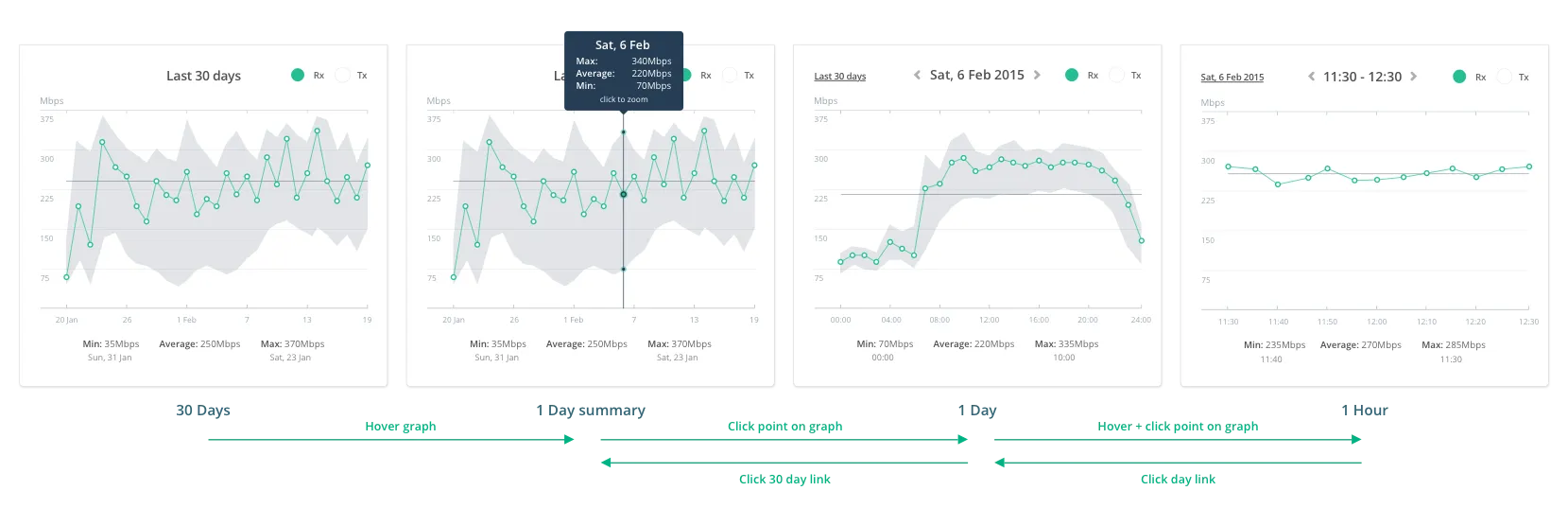
To address these needs while moving toward a launch as quickly as possible, the project centered on a core set of functional requirements. These were translated into an interactive prototype to test the user experience. The focus for this initial version included:
An interactive chart with zoom and navigation controls for varied timeframes.
Tooltips that summarised key stats like min, max, and averages at a glance.
A toggle to switch between Rx and Tx traffic for better visual clarity.
Testing and implementation
Validating the prototype involved moderated testing sessions with a cross-section of product managers, engineers, and sales teams. With no major issues identified, the project moved into development. A few minor design details were deprioritised to meet the launch date—a necessary trade-off that allowed for a quicker release and gave us the opportunity to learn and iterate sooner.
Outcomes
The initial launch was well received, with users praising the clarity of the data and ease of navigation. Interestingly, providing connection-level measurements emerged as a significant differentiator; more than one customer noted that this was a specific capability they couldn't find elsewhere. This feedback proved that network stats were a core value-add worth further investment. However, the feedback also revealed a gap: charts alone weren't enough. Users needed proactive warnings to stay ahead of congestion, which shifted the focus toward a more robust alerting system.
Iteration 2: Introducing threshold alerts
While historical data was valuable, it still required users to manually monitor the product to avoid issues. To address this, a basic notification feature was introduced to alert users when they hit defined thresholds. The initial version had one major drawback: it lacked context. Users could see that a breach had occurred but couldn't see it in relation to their traffic trends. It became clear that alert data needed to live directly within the utilisation charts to be truly useful.
Enhancements and refinements
Early explorations showed that cramming alert and threshold details into a standard tooltip made the interface feel cluttered and difficult to parse. Moving to a dedicated, fixed readout area provided the necessary space to convey complex information clearly. This structural change was combined with several key refinements:
Plotting alerts directly on the chart for immediate visibility.
Adding threshold indicators and plot lines to provide visual context.
Aggregating multiple alerts within a single time period to reduce noise.

Interactive threshold adjustment
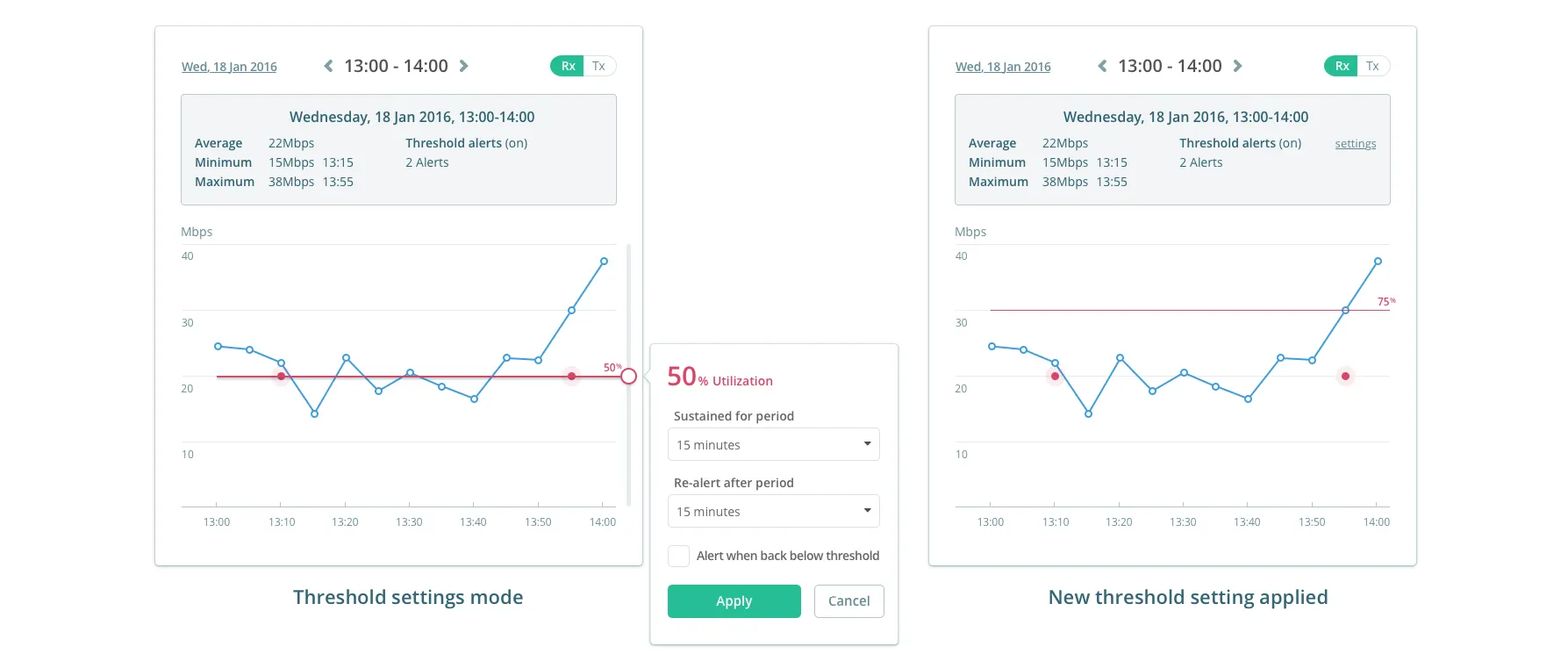
Visualizing the threshold line on the chart opened up a natural opportunity to make the setting interactive. Allowing users to drag that line directly to a specific value—using their own historical peaks as a visual guide—offered a much more intuitive way to set accurate alerts. To ensure this was technically viable, a coded prototype was used to validate the interaction within the charting library before moving to implementation.

Implementation
Having the coded prototype as a reference meant the final build matched the design intent perfectly. This approach removed the usual guesswork during handoff, ensuring the interactive elements worked exactly as expected when the feature went live.
Outcomes
This second version struck a chord with users, who valued seeing alerts layered over historical trends rather than as isolated notifications. They found the visual threshold adjustment far more intuitive than manual input, particularly when using their own historical stats as a guide.
However, as usage increased, a new pain point emerged: troubleshooters needed to see both Rx and Tx traffic at the same time to get a full picture of network health. The constant toggling between views was a serious point of friction.
Iteration 3: Displaying Rx and Tx simultaneously
The original decision to separate Rx and Tx views was an attempt to reduce visual clutter, but the reality of troubleshooting required both datasets to be visible at once. To address this, the final phase of the project focused on bringing everything into a single, cohesive view without sacrificing clarity.
Optimising data presentation
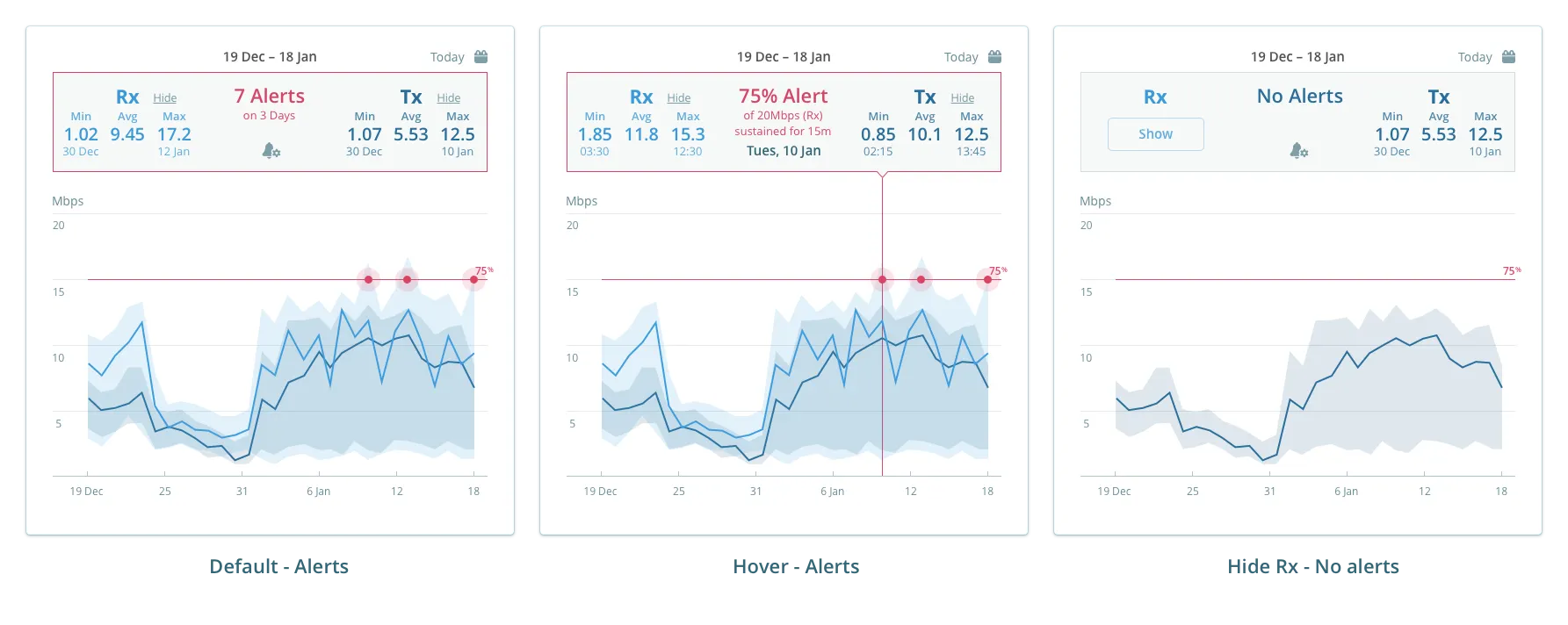
Layering seven different data series—three for Rx, three for Tx, and one for alerts—on a single chart presented a significant design challenge. The goal was to pack the interface with essential information without making it unreadable. Achieving this required a series of refinements to the visual hierarchy and UI logic:
Separate readout areas for Rx, Tx, and alerts to keep the key stats organized and easy to scan.
Color-coding and transparency to effectively layer multiple datasets without them bleeding into one another.
Individual toggles that allowed users to hide specific series whenever they needed to simplify their view.
Simplified chart elements by stripping away unnecessary markers to keep the focus on the trends.

Outcomes
The final update delivered exactly what users were looking for: total visibility into their network activity at a glance. By removing the need for constant toggling, the interface allowed engineers to see the full picture of their traffic without any extra clicks. This immediate access to data didn't just save time—it gave users the confidence in making capacity adjustments, knowing they were seeing the most accurate and complete version of their network health.
Reflections
The evolution of this tool shows exactly how an iterative, research-led approach can transform a standard feature into a mission-critical differentiator. By launching an MVP quickly, we moved past the guessing stage and started refining based on how engineers actually operated. Staying rooted in real-world usage ensured that we didn't just build a functional set of charts, but a specialized tool that became essential to our users’ daily workflows.